Skip to content
If you’ve recently ditched cable and moved over to the world of streaming, you’ve probably heard people talking about “IPTV.” It sounds a bit technical, but in reality, it’s just a way to get all your favorite live TV channels, movies, and sports over the internet.
One of the best ways to enjoy this is by using a Firestick. It’s cheap, powerful, and easy to use. However, if you search the Amazon App Store for the best player, you might notice that IPTV Smarters Pro isn't always right there in the top results.
Don't worry! In this guide, I’m going to walk you through exactly how to download IPTV Smarters Pro on Firestickstep-by-step. I’ll keep it simple, so even if you aren't a “tech person,” you’ll have it up and running in about five minutes.
What Is IPTV Smarters Pro?

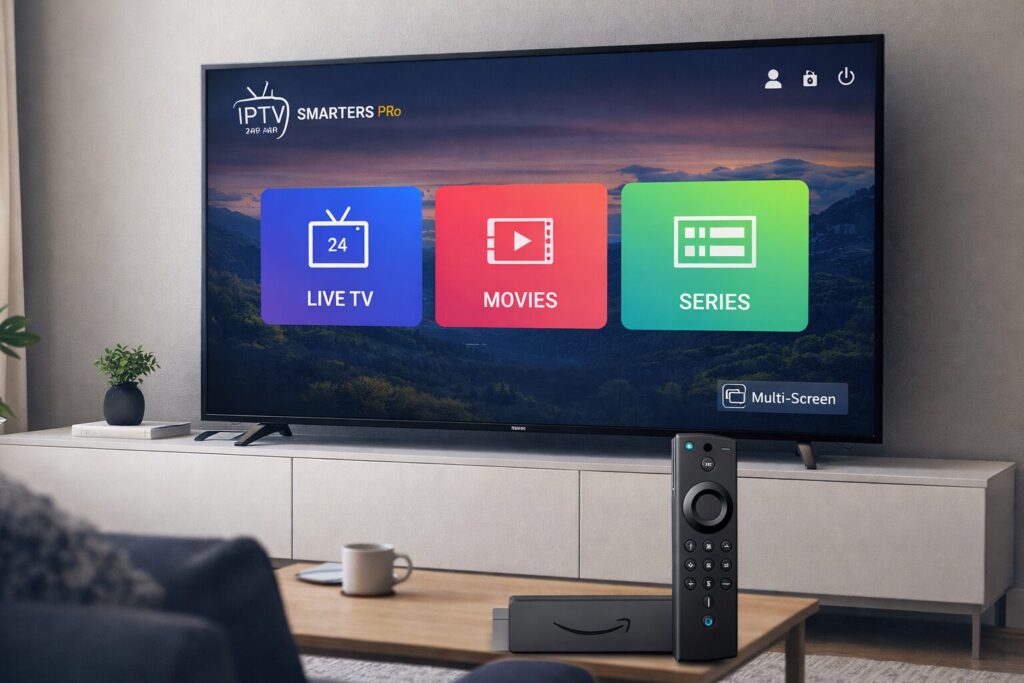
Think of IPTV Smarters Pro as a high-end “media engine.” On its own, the app is empty—it doesn't come with any channels or movies. It’s a video player designed specifically to handle IPTV subscriptions.
When you get a subscription from a provider, they give you a set of “codes” or a link. You plug those into IPTV Smarters Pro, and suddenly, the app transforms into a full-blown TV interface. It organizes everything into Live TV, Movies, Series, and even a Catch-up section so you can watch things you missed.
Why People Use IPTV Smarters Pro on Firestick
There are dozens of IPTV apps out there, but IPTV Smarters Pro Firestick remains the gold standard for a few reasons:
- Clean Interface: It looks like a premium streaming service (think Netflix or Hulu), making it very easy for family members to navigate.
- Speed: It’s lightweight. It doesn't lag or freeze up your Fire TV Stick like some of the heavier apps do.
- Multi-Screen: You can actually watch four channels at once on the same screen—perfect for sports Sundays!
- Parental Controls: You can lock adult content or specific categories if you have kids in the house.
Requirements Before Starting
Before we dive into the installation, let’s make sure you have everything ready. You won't need a computer, just your Firestick remote and a few minutes.
- Amazon Firestick: Any version works (Lite, 4K, 4K Max, or the Fire TV Cube).
- Internet Connection: A stable Wi-Fi connection is key for streaming.
- The Downloader App: Since Smarters Pro isn't in the official store, we use a free tool called “Downloader” to get it.
- IPTV Subscription: You’ll need your login details (Username, Password, and URL) from your provider.
How to Download IPTV Smarters Pro on Firestick (Step-by-Step)
Because this app is “sideloaded” (installed from outside the official store), the process is a little different than usual. Just follow these steps exactly:
Step 1: Install the Downloader App
First, we need the tool that actually grabs the app for us.
- From the Firestick home screen, go to Find and then Search.
- Type in Downloader.
- Select the orange Downloader icon and click Download or Get.
- Don't open it yet! We have to change one setting first.
Step 2: Enable Developer Options
Amazon hides the “Developer Options” by default to keep things simple, but we need them to install IPTV Smarters on Fire TV Stick.
- Go to Settings (the gear icon on the far right).
- Click on My Fire TV.
- Click on About.
- Important: Hover over your device name (e.g., Fire TV Stick 4K) and click the Select button on your remote 7 times quickly. You’ll see a message at the bottom saying “No need, you are already a developer.”
- Press the back button once. You will now see Developer Options listed.
Step 3: Allow Unknown Apps
- Open Developer Options.
- Click on Install unknown apps.
- Find Downloader in the list and turn it ON. This gives Downloader permission to install the IPTV app for you.
Step 4: Use Downloader to install IPTV Smarters Pro
- Now, open the Downloader app you installed earlier.
- Click Allow when it asks for file permissions.
- In the URL box, type in the following code: 5546232 (This is a shortcut code that takes you directly to the download).
- Alternatively, you can type in the direct URL for the APK if your provider gave you one.
- Wait for the file to download. Once it's done, click Install.
- After it installs, click Done. A pop-up will ask if you want to delete the file—click Delete. (This saves space on your Firestick by removing the “installer” file you no longer need).
How to Set Up IPTV Smarters Pro After Installation

Now that the IPTV app for Firestick is installed, let's get your content loaded.
- Go to your Apps library and open IPTV Smarters Pro.
- Accept the terms and conditions.
- You will see several options to add a user. The most common and easiest method is Login with Xtream Codes API.
- Enter your details:
- Any Name: You can literally type “My TV” or “Flexvision.”
- Username: Provided by your IPTV service.
- Password: Provided by your IPTV service.
- URL: This usually looks like
http://example.com:8080.
- Click Add User, and wait a minute for it to download your channels and movies.
Best IPTV Service to Use with IPTV Smarters Pro
If you haven't picked a provider yet, I highly recommend FlexvesionPro. In 2026, the IPTV market is crowded, but FlexvesionPro stands out because it’s built specifically for stability.
One of the biggest headaches with IPTV is buffering during a big game. FlexvesionPro uses anti-freeze technology and stable servers to make sure your stream stays smooth. Plus, they offer a massive selection of HD and 4K channels that sync perfectly with the Smarters Pro interface. It’s an easy IPTV setup on Firestick that actually stays working.
Common Problems and Fixes
Even the best apps have hiccups. Here are the most common issues people run into:
- App Won't Install: Make sure you enabled “Install Unknown Apps” for the Downloader app in the settings. If you don't do this, the Firestick will block the installation for security.
- Login Error: 99% of the time, this is a typo. IPTV URLs are very sensitive. Double-check every dot and colon.
- Buffering: If your video is stuttering, try restarting your router. If that doesn't work, you might need a VPN to prevent your internet provider from “throttling” or slowing down your IPTV stream.
- App Disappeared: Sometimes Firesticks update and hide sideloaded apps. Go to Settings > Applications > Manage Installed Applications to find it again.
Conclusion

Learning how to download IPTV Smarters Pro on Firestick is a game-changer for your home entertainment. It gives you the freedom to watch what you want without the massive monthly bill of traditional cable.
The process is straightforward: get the Downloader app, tweak your settings, and log in. Once you're set up with a reliable provider like FlexvesionPro, you’ll wonder why you didn't do this sooner.